 GitHub Repo Navigator
// Free and open source Chrome extension
Every repository, right in GitHub's menu
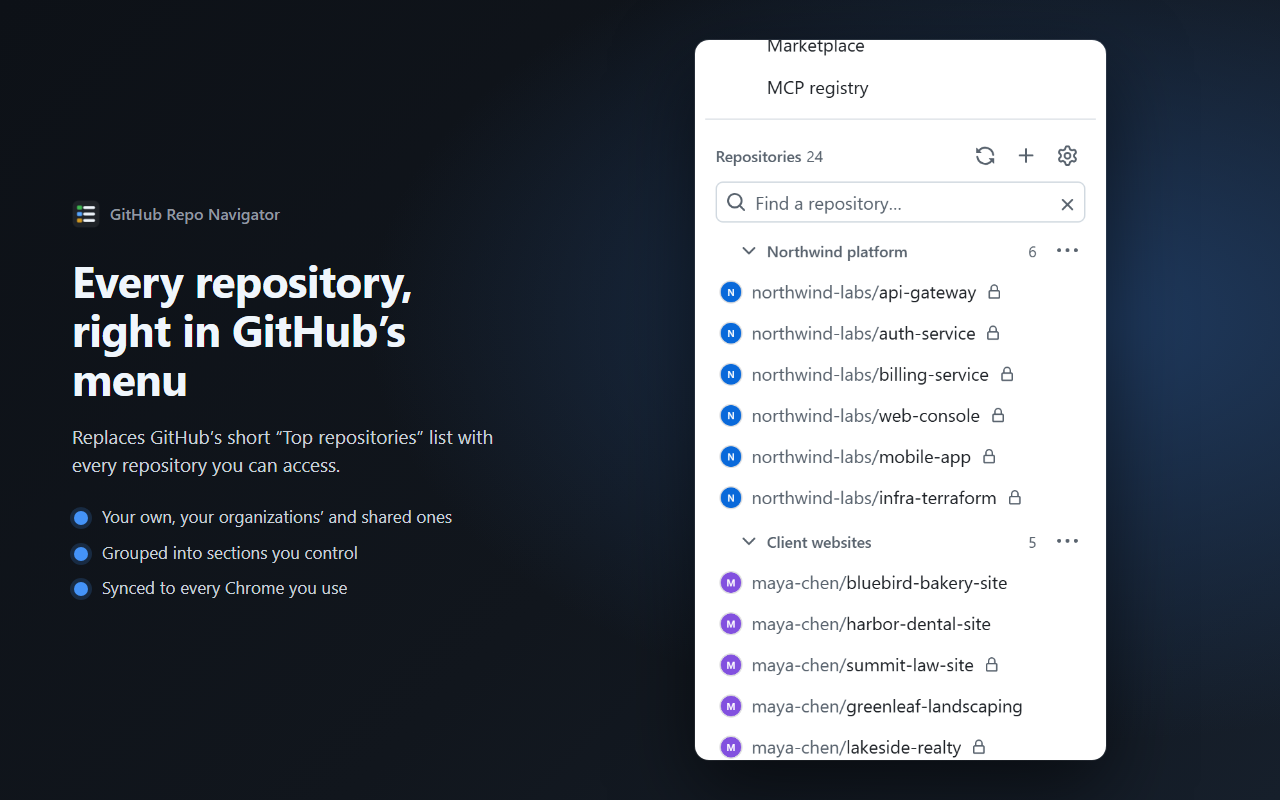
GitHub shows about ten "Top repositories" and hides the rest behind "Show more". Repo Navigator replaces that short list with every repository you can access, organized into your own sections that sync between your Chrome devices. Read-only, with no server in between.
Live on the Chrome Web Store
// What it changes
Two places on GitHub, nothing else
The ☰ menu
The button at the top-left of any github.com page. Its Top repositories section becomes your full, organized list.
The dashboard sidebar
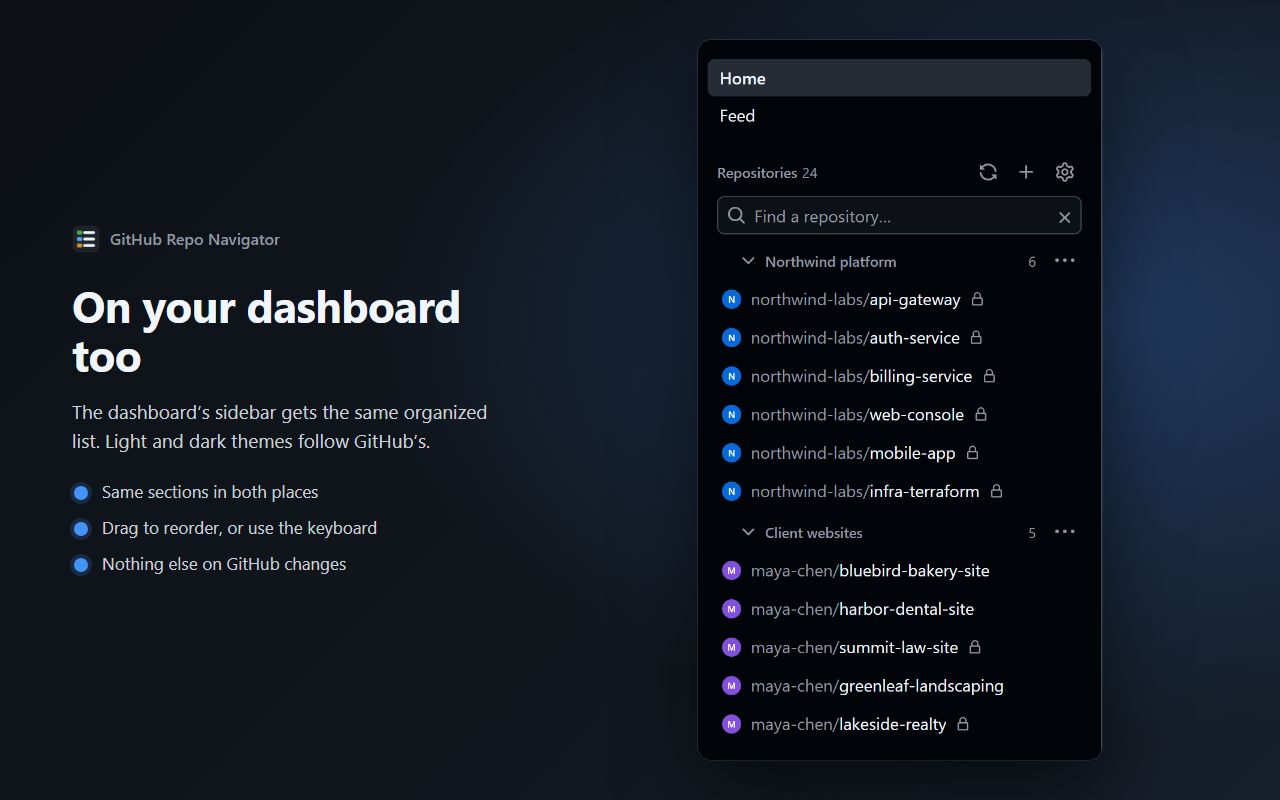
On github.com's home page, the Top repositories list on the left becomes the same organized list.
Both places show the same sections. Repository pages, search and the rest of the menu are untouched. If GitHub changes its page layout in a way the extension does not recognise, it steps aside and GitHub's own list stays in place.
// Features
Built for people with a lot of repositories
Complete list
Every repository your authorization can reach, read page by page from GitHub's official API: your own, your organizations' and ones you collaborate on.
Your sections
Create, rename, reorder, collapse and delete sections. Drag repositories between them, or move them with the keyboard. New repositories land in Uncategorized.
Organize automatically
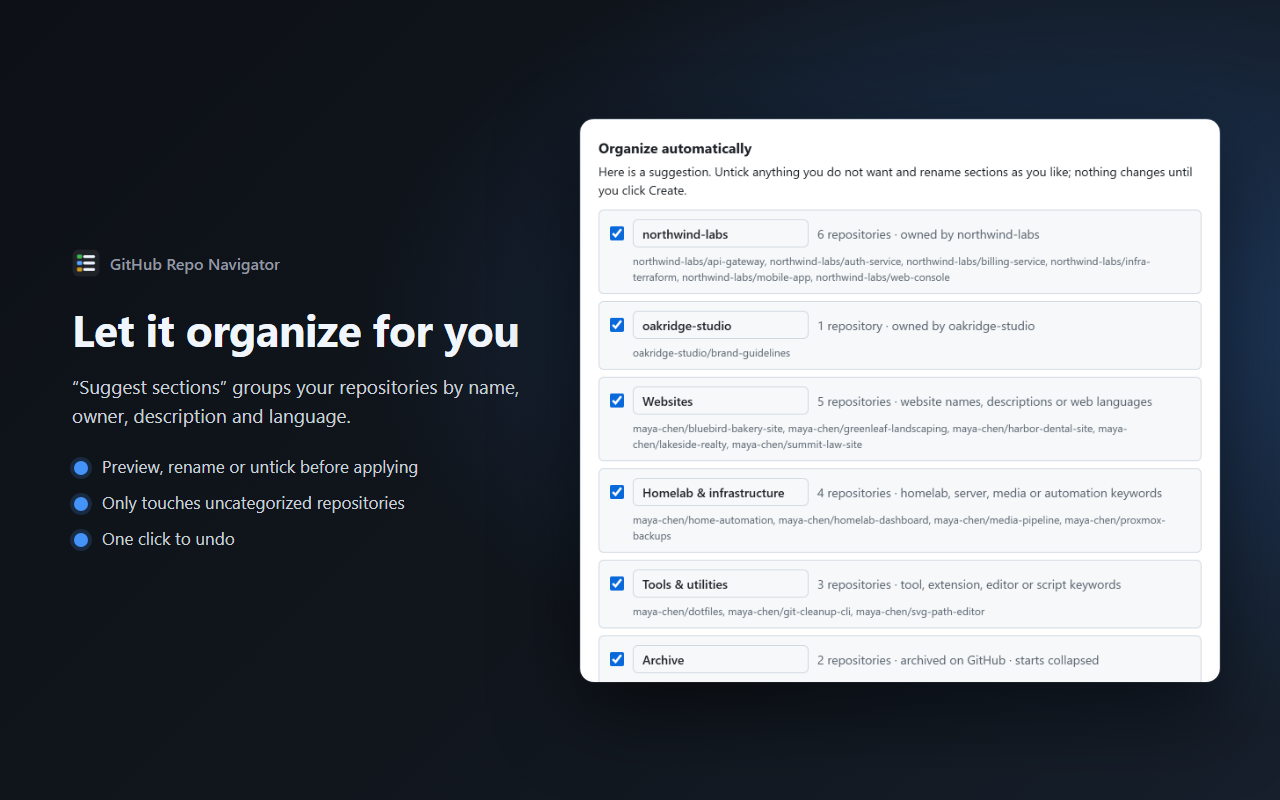
"Suggest sections" groups repositories by name prefix, owner, description and language. Preview, rename, apply, or undo.
Instant filter
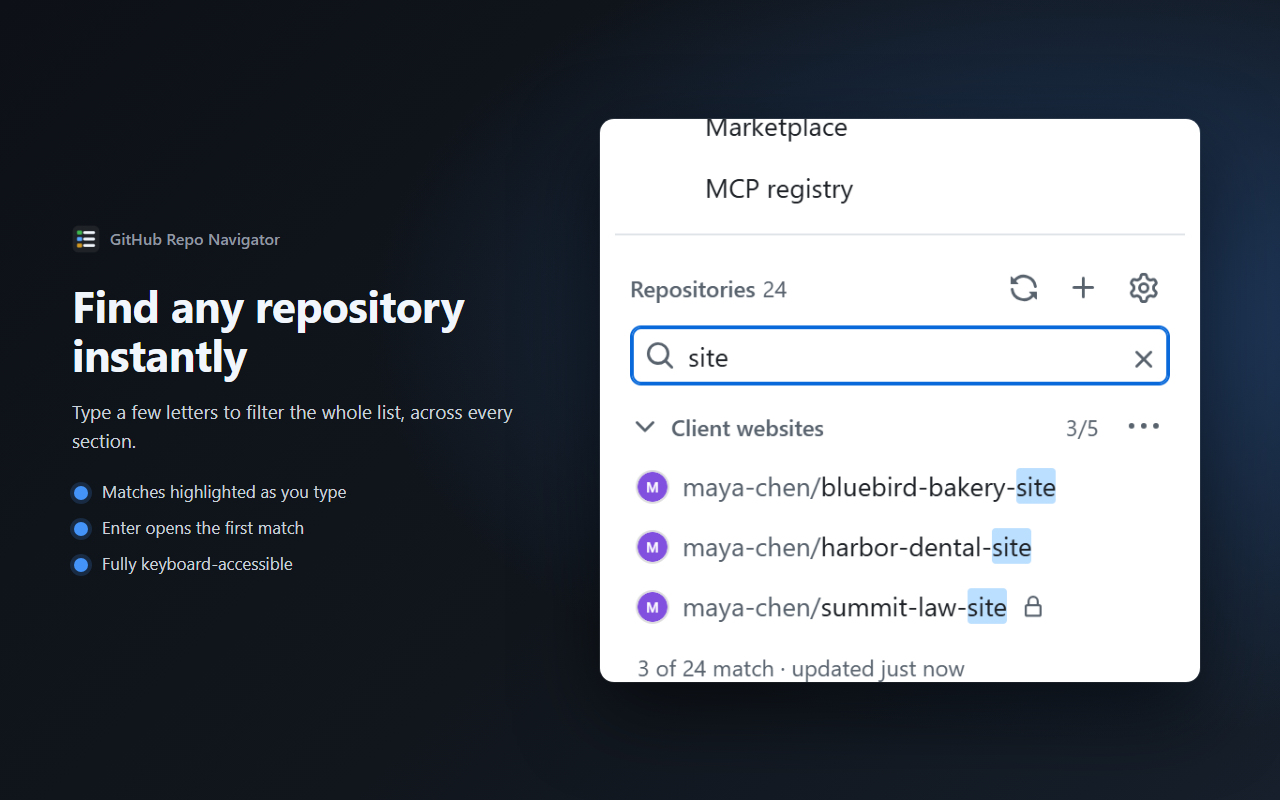
Type a few letters to filter the whole list across every section. Enter opens the first match.
Synced
Your sections follow you to every Chrome where you use Chrome Sync, keyed by repository ID so renames keep their place. Export and import them as a file too.
More than one account
Connect each GitHub account you use. Every page shows the repositories and sections of the account it is signed in as.
Guided setup
A checklist on the settings page takes you from nothing to every repository in the menu, and checks each step against what the extension can see.
Looks like GitHub
Follows every GitHub theme, light, dark and high contrast. Full keyboard support, with moves announced to screen readers.
// A closer look
Find it fast, file it once
// Open source, no server
Read-only, and you can check
An extension that can see your private repository names should be one you can inspect. Repo Navigator is open source under the GPL, and it has no backend at all: your browser talks to GitHub directly.
- No Repo Navigator server, no analytics, nothing sent to the developer
- GitHub access through a GitHub App you create and own
- Read-only repository metadata: it cannot read code or change anything on GitHub
- Tokens stay on the device: never synced, logged or handed to the page
- Descriptions, languages and topics read only for a suggestion, never stored
- No other extension or web page can message it
// Setup
About three minutes, once
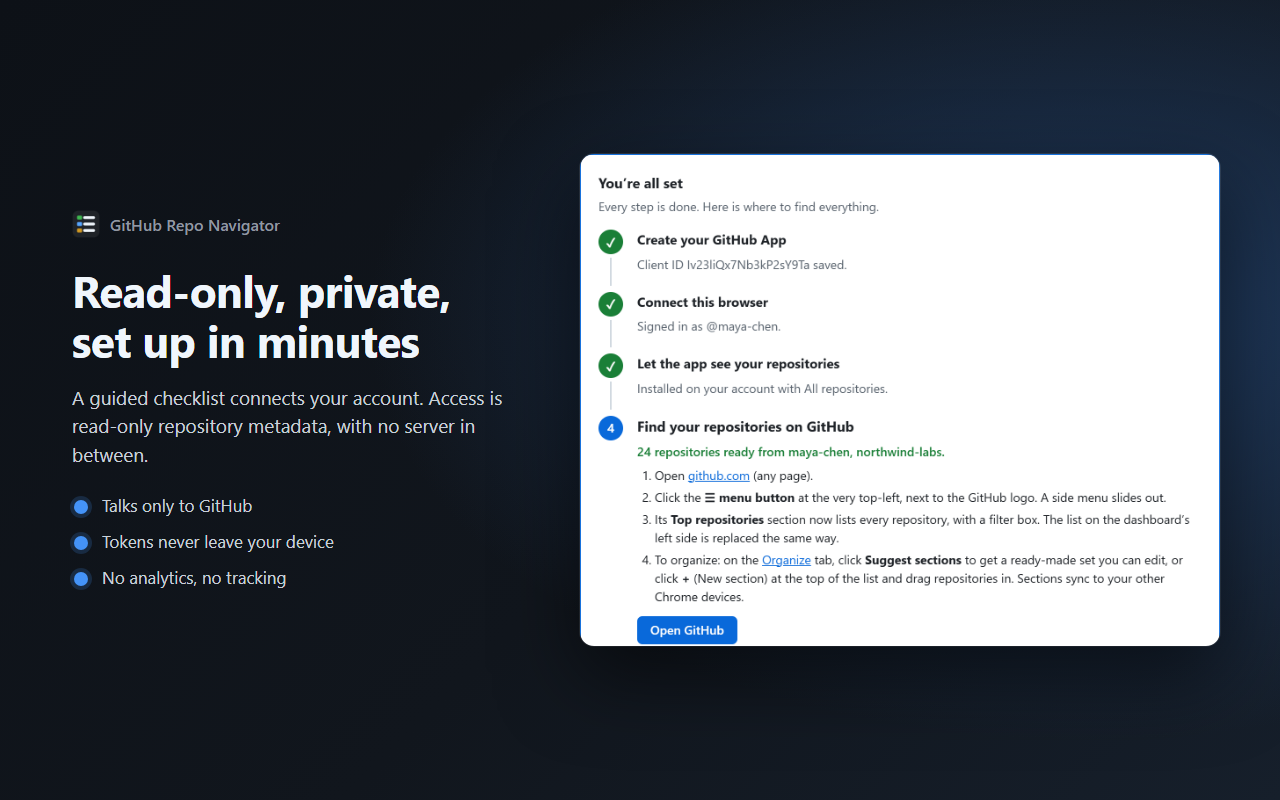
The extension's settings page walks you through every step with a checklist that verifies each one.
- Create your GitHub App. The extension signs in through a small GitHub App that you own, limited to read-only repository metadata. The settings page opens GitHub's form already filled in and tells you the one box to tick (Enable Device Flow). Paste the app's Client ID back.
- Connect. Click Connect GitHub, enter the short code it shows at github.com/login/device, and click Authorize.
- Install the app on your account with All repositories. The guide links straight to it and checks again when you come back. Organizations need the app installed too; the guide has an install link to send to an owner.
- Open GitHub. Click ☰, or open the dashboard. Choose Suggest sections or start with one list.
// Install
Get Repo Navigator
Install it from the Chrome Web Store. Prefer to build it yourself? Install from source (Chrome 140 or newer, Node.js 22): download the code, run npm ci and npm run build, then load the dist folder in chrome://extensions with Developer mode on.
// FAQ
Questions
Is it really free?
Yes, every feature, with no account with us. If it saves you time, you can support the project.
Why do I have to create a GitHub App?
A GitHub App can be limited to read-only repository metadata; an OAuth App cannot, for private repositories (its repo scope grants write access). Signing in with GitHub's device flow needs no client secret, so there is no server to trust. The app is yours, and nobody else's app ever sees your repositories.
Can it change anything on GitHub?
No. Its only GitHub permission is read-only repository metadata. It cannot read code, issues or pull requests, and it cannot change anything.
Where are my organization's repositories?
They appear once the app is installed on that organization with All repositories. If you are not an owner, the setup guide gives you an install link to send to one. For SAML organizations, sign in to the organization on github.com, then disconnect and reconnect.
Do my sections follow me to another computer?
Yes, through Chrome Sync, as long as the Extensions sync toggle is on. Each browser connects to GitHub on its own (tokens are never synced), and the sections appear as soon as it does. You can also export your sections to a file and import them anywhere.
Something isn't working
The settings page shows what the extension can see and what to fix. Still stuck? Open an issue or email James@Levac.net with your Chrome version and what the settings page says.
// Support the project
Free, nothing held back
Repo Navigator has no paid tier. If it saves you time, a donation keeps it maintained as GitHub changes its pages.
// More from James Levac
Other free extensions
- Inbox PilotYour ChatGPT at the controls of your Gmail: ask from the search bar, draft replies, tidy your inbox.
- GitHub Actions MonitorTurns the toolbar icon into a live status light for your GitHub Actions runs.